MindDory Is Now in Chrome: Translate a Word Where You Read It, Check a Sentence Where You Write It
You are reading an article in English, you hit a word you do not know, and that is usually where it ends. By the time you have opened a dictionary or an app, the sentence the word was in is gone, and that sentence is the part you would have remembered. The MindDory extension for Chrome removes that step.
Opens the Chrome Web Store. You need a free MindDory account to use it.
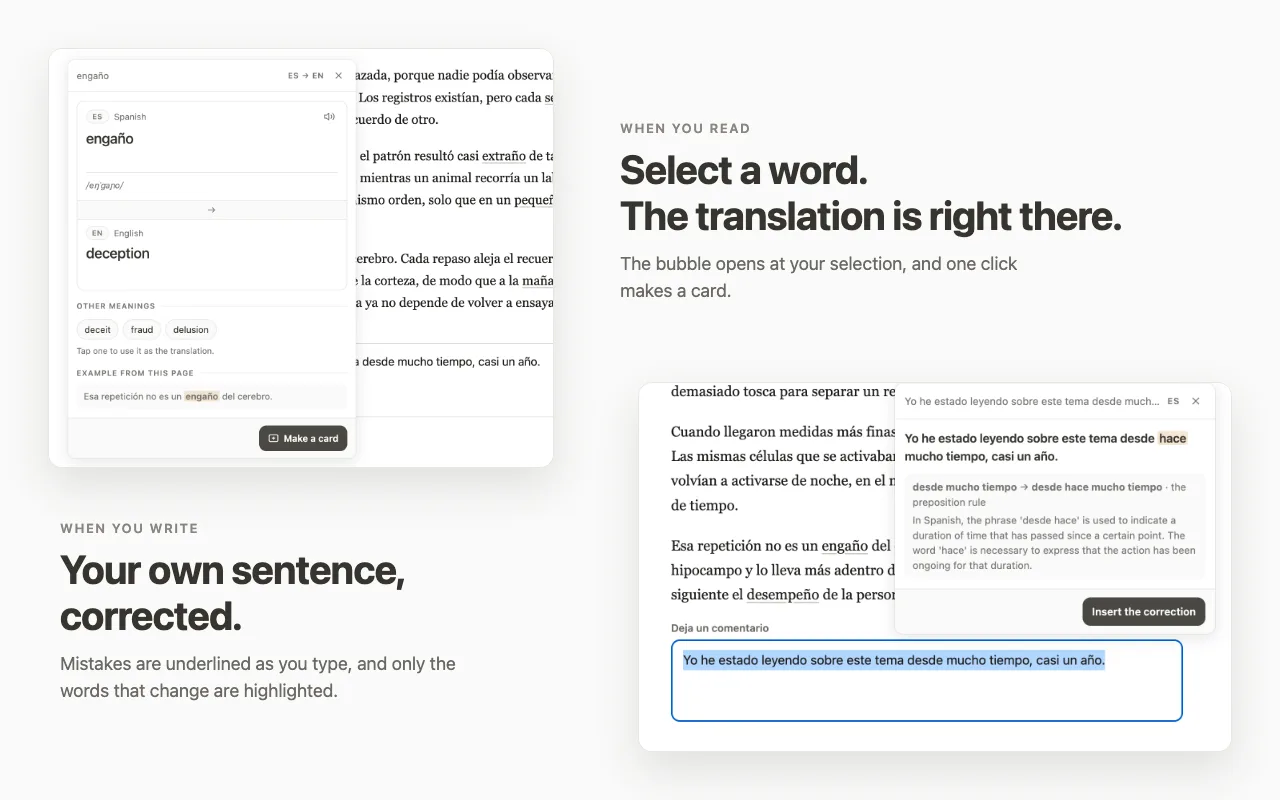
Most new words do not come from a textbook. They come from an article, a comment, an email or the documentation you are reading for work. The problem is not finding a translation; there are plenty of those. The problem is everything that happens around it: you copy the word, switch tabs, paste it, read the answer, and come back to a page where you have lost your place. The next day you remember that there was a word, but not which one.
The extension keeps all of that on the page you are reading. It does two things, one for reading and one for writing.
Reading: select a word, see the translation right there
Select a word or a short piece of a sentence and a small bubble opens at your selection, not in a side panel or a new tab. Inside it you see the translation and the whole sentence the word was in, so you read the word in its context instead of on its own.
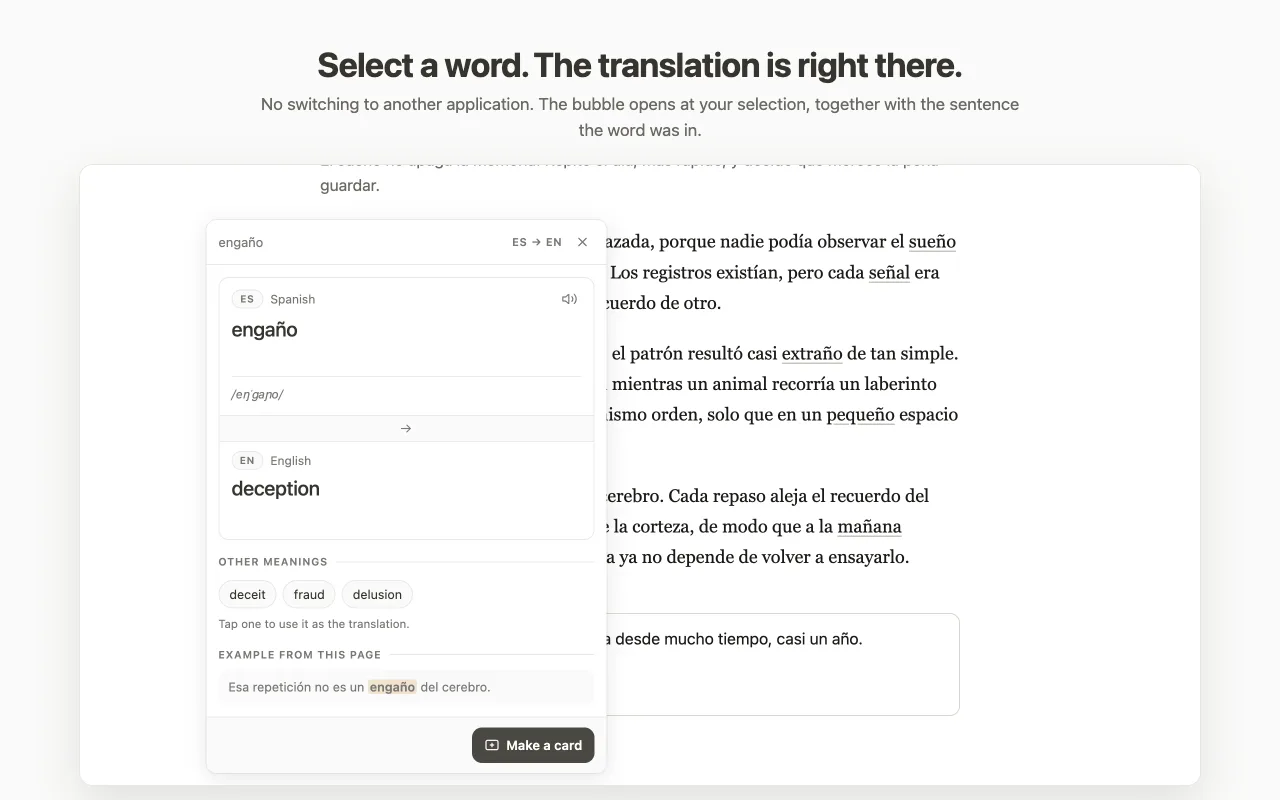
- It recognises which language the text is in and translates into the language of your own MindDory folders.
- When a word has several meanings, you pick the one that is actually used in that sentence.
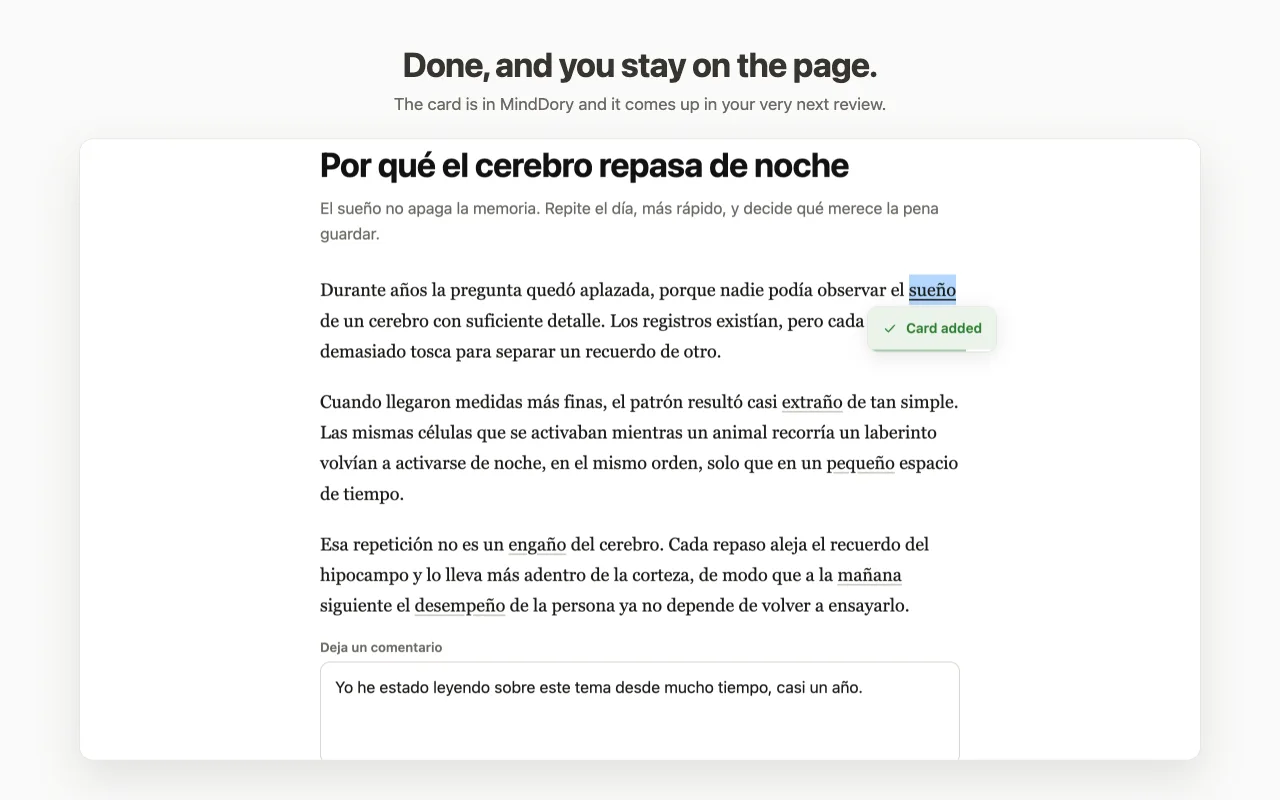
- One click saves it as a card in the folder you choose. You stay on the page and keep reading.
Writing: select a sentence you wrote, and click Check
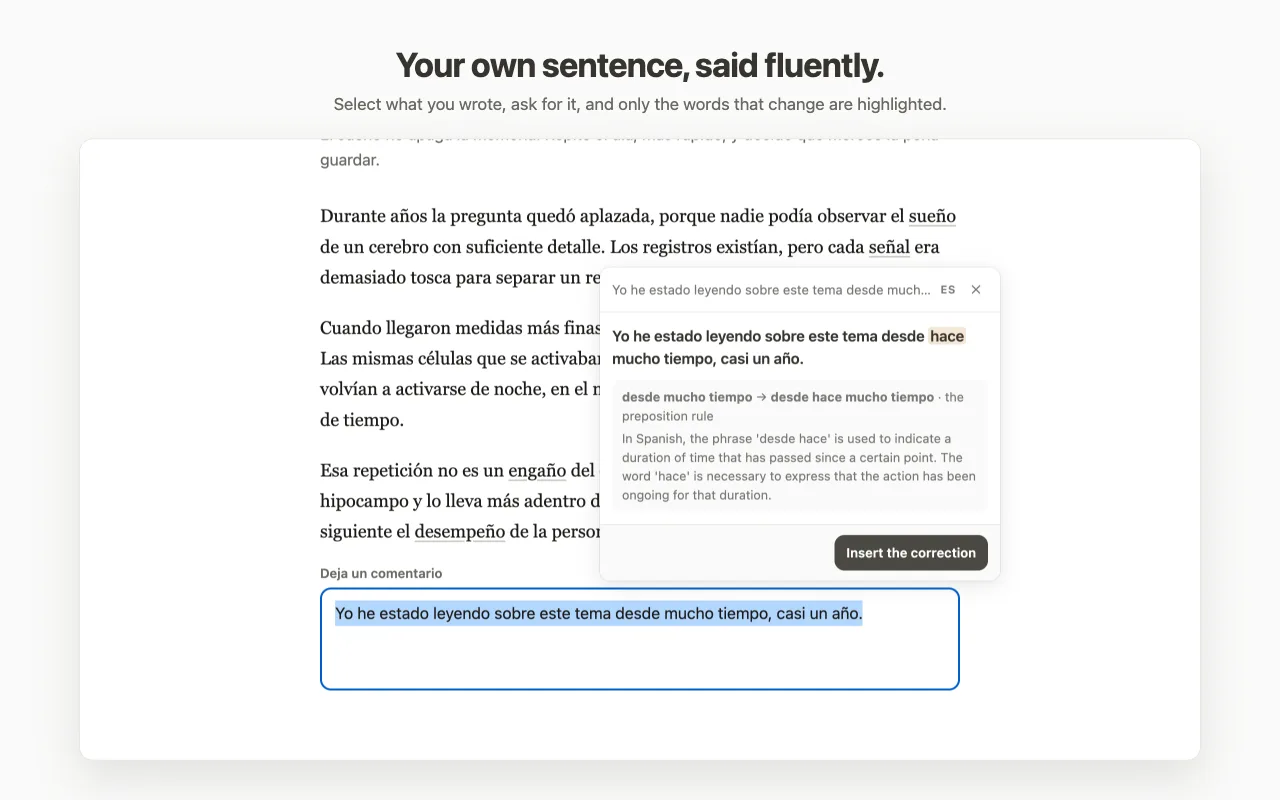
The second half is for the text you write yourself: a comment, a message, a reply in a text field. Select the sentence and click Check. The bubble shows what is wrong with it, and one click puts the corrected sentence back into the field.
Next to it is "Say it fluently": the same sentence the way someone who speaks the language would put it. A sentence can be correct and still sound like a translation, and this is the difference you rarely get told about. In both views, only the words that actually change are highlighted, so you see what changed instead of reading the sentence twice.
One thing it does not do today: a checked sentence cannot be saved as a card. The cards come from the words you select while reading.
Where the cards go
A card you make in Chrome is an ordinary MindDory card. It shows up in the web app, on iPhone and on Android, and it comes back for review on the same schedule as any other card: three days for a word you found hard, a week for an easy one. That is the step that turns a word you once looked up into a word you can actually use.
What it reads, and what it does not
An extension that works on every page has to be clear about this, so here is the short version.
- Nothing from a page leaves your browser until you select something. Then only the text you selected is sent, to be translated or checked.
- The sentence around your selection is put together in your browser and shown in the bubble. The sentence itself is never sent anywhere.
- It never reads password fields, one-time code fields or payment fields. In a field like that, the text is not read at all.
- It does not collect your browsing history or the addresses of the pages you visit.
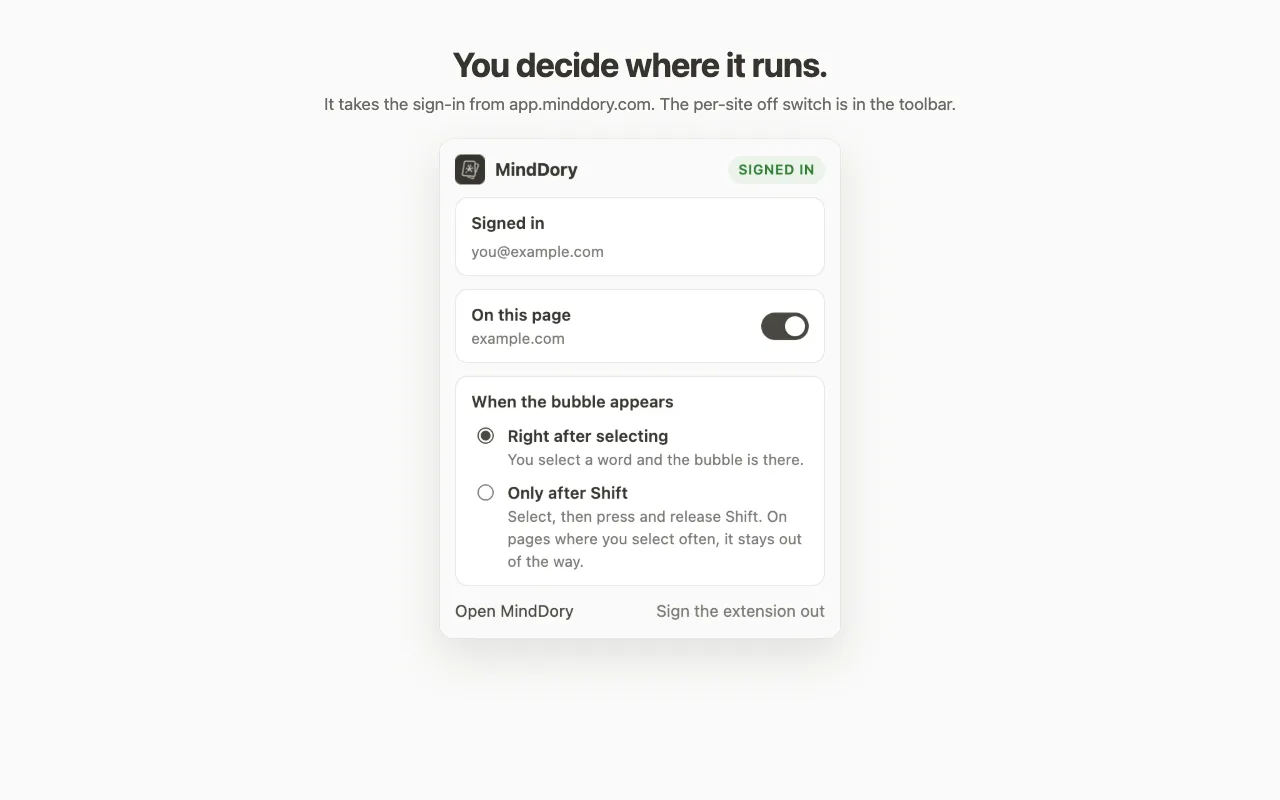
- The toolbar button has a per-site off switch. A site where you do not want it simply does not get it.
How to start
Install MindDory from the Chrome Web Store. It needs a free MindDory account. You sign in at app.minddory.com as usual, and the extension picks up that sign-in, so you never type a password into the extension itself.
The extension speaks English. Select a word on the next page you read, and you will see how it works in a few seconds.